The Complete Guide to Core Web Vitals for WordPress (2026 Update)
Last updated on January 13, 2026
Your WordPress site could be losing visibility—and you might not even know it.
Speed is no longer just a UX issue; it’s an AI discovery issue. In 2026, search engines, AI assistants, and generative search tools prioritize fast, stable, well-structured websites when choosing what to reference, summarize, and recommend.
What You’ll Learn
- What Core Web Vitals are and why they matter for SEO
- How to measure your current Core Web Vitals scores
- Detailed strategies to optimize LCP, INP, and CLS
- WordPress-specific optimization techniques
- Common mistakes and how to avoid them
- Tools and resources for ongoing monitoring
Google’s Core Web Vitals are still a ranking factor—but now they’re part of a bigger picture. If your site is slow, glitchy, or frustrating to use, you’re not just losing rankings. You’re being skipped by AI, buried in search results, and overlooked by users with zero patience.
Your content might be great. Your SEO might be solid. But poor performance quietly drains your traffic, trust, and conversions.
What Are Core Web Vitals?
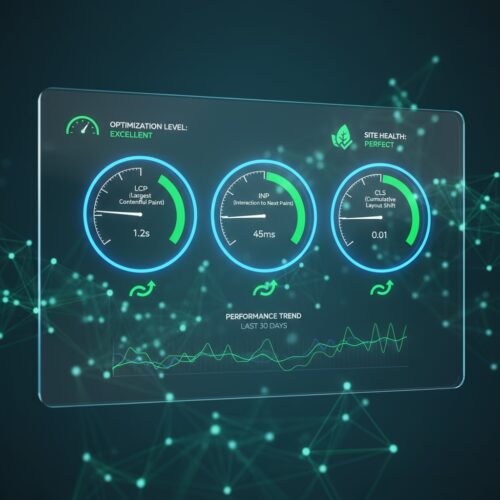
Core Web Vitals are Google’s real-user performance metrics that measure how fast a page loads (LCP), how responsive it feels (INP), and how visually stable it is (CLS). In 2026, these three metrics define whether a site provides a good user experience and influence both search rankings and AI visibility.
Core Web Vitals measure real-world user experience: how fast your content loads, how quickly users can interact with your page, and whether your layout shifts unexpectedly. Google uses these metrics to determine which sites deserve top rankings.
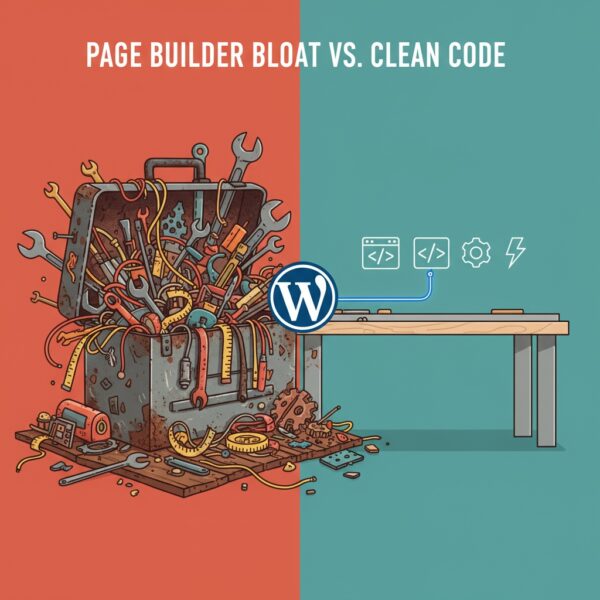
The challenge? Most WordPress sites fail Core Web Vitals—especially sites using page builders, heavy themes, or poorly optimized plugins. Even well-maintained sites can struggle to pass all three metrics.
I’ve optimized dozens of WordPress sites for Core Web Vitals, consistently achieving passing scores and measurable SEO improvements. In this comprehensive guide, I’ll show you exactly what Core Web Vitals are, why they matter, and how to optimize your WordPress site to pass all three metrics.
Largest Contentful Paint (LCP): Loading Performance
What it measures: How long it takes for the largest visible content element to load. This is usually your hero image, headline, or main content block.
Why it matters: LCP measures perceived load speed—when users feel like your page has loaded. If your LCP is slow, users think your site is slow, even if other elements load quickly.
Google’s thresholds:
- Good: 2.5 seconds or less
- Needs Improvement: 2.5-4.0 seconds
- Poor: More than 4.0 seconds
Common LCP elements on WordPress sites include hero images, featured images on blog posts, large text blocks, and video embeds above the fold.
Example: A client’s WordPress site had an LCP of 4.8 seconds due to an unoptimized hero image. After implementing image compression, lazy loading exclusion, and CDN delivery, LCP dropped to 1.8 seconds—a 62% improvement that resulted in +47% organic traffic within 4 months.
Interaction to Next Paint (INP): Interactivity
What it measures: How long it takes for your page to respond to user interactions (clicks, taps, key presses).
Important 2025 update: As of March 2024, Google replaced First Input Delay (FID) with Interaction to Next Paint (INP), which measures responsiveness throughout the entire page lifecycle, not just the first interaction. This is a more comprehensive measure of real-world responsiveness.
Why it matters: INP measures how responsive your site feels. If users click a button and nothing happens for 2 seconds, they’ll assume your site is broken or slow.
Google’s thresholds (INP):
- Good: 200 milliseconds or less
- Needs Improvement: 200-500 milliseconds
- Poor: More than 500 milliseconds
Common causes of poor INP on WordPress include heavy JavaScript from page builders, unoptimized third-party scripts (analytics, ads, chat widgets), large unminified JavaScript files, and render-blocking scripts.
Example: A B2B SaaS site had an INP of 680ms due to multiple tracking scripts and a page builder framework. After deferring non-critical scripts and removing the page builder, INP improved to 145ms, resulting in a 39% bounce rate reduction.
Cumulative Layout Shift (CLS): Visual Stability
What it measures: How much your page layout shifts unexpectedly as it loads. Every time an element moves, it adds to your CLS score.
Why it matters: Layout shifts create a frustrating user experience. Users try to click a button, but an ad loads and pushes the button down—they click the wrong thing. Google penalizes this poor UX.
Google’s thresholds:
- Good: 0.1 or less
- Needs Improvement: 0.1-0.25
- Poor: More than 0.25
Common causes of CLS on WordPress include images without width/height attributes, ads or embeds without reserved space, web fonts loading and causing text reflow, and dynamically injected content like popups or banners.
Example: A professional services site had a CLS of 0.34 due to images without dimensions and a dynamically-loaded banner. After adding explicit width/height attributes and reserving space for the banner, CLS dropped to 0.
Why Core Web Vitals Matter for WordPress Sites
Core Web Vitals aren’t just technical metrics—they directly impact your business.
1. SEO, Rankings & AI Visibility
Google confirmed Core Web Vitals as a ranking factor in 2021. Sites with strong Core Web Vitals scores have a competitive advantage—especially when content quality is similar.
This doesn’t mean performance replaces good content. But when two sites offer comparable value, the faster, more stable, and more responsive site tends to win.
Now there’s a new layer: AI-driven discovery. Systems like Google AI Overviews, ChatGPT, and Perplexity increasingly favor sites that are not just relevant, but fast, stable, and easy to crawl. Poor performance, layout shifts, and delayed interactivity make it harder for these systems to confidently reference your content.
In short: Core Web Vitals don’t just affect traditional rankings—they influence whether AI systems trust your site enough to surface it.
Studies show that sites passing all three Core Web Vitals metrics see an average 5–10% increase in organic traffic within 3–6 months.
2. User Experience and Conversions
Core Web Vitals measure real user experience. Fast, responsive, stable sites keep users engaged. Slow, unresponsive, shifty sites drive users away.
The numbers are clear:
- 53% of mobile users abandon sites that take longer than 3 seconds to load
- A 1-second delay in load time can reduce conversions by 7%
- Sites with good Core Web Vitals see 24% lower bounce rates on average
Better Core Web Vitals = better user experience = higher conversions.
3. Mobile Performance
Google uses mobile-first indexing, meaning your mobile performance directly impacts your rankings. Core Web Vitals are measured on mobile devices, where performance challenges are amplified.
If your WordPress site passes Core Web Vitals on desktop but fails on mobile, you’re still at a disadvantage. Mobile optimization isn’t optional—it’s essential.
How to Measure Your Core Web Vitals
Before you can optimize, you need to measure. Here are the best tools for checking your Core Web Vitals scores.
1. Google PageSpeed Insights
PageSpeed Insights is the most accessible tool. Enter your URL and get instant Core Web Vitals scores for both mobile and desktop, plus specific recommendations.
What you get:
- Field data (real user measurements from Chrome User Experience Report)
- Lab data (simulated test environment)
- Specific recommendations for improvement
- Performance score (0-100)
Limitation: Only tests one page at a time. For comprehensive site audits, use additional tools.
2. Google Search Console
Search Console’s Core Web Vitals report shows which pages on your site are passing, need improvement, or failing—grouped by mobile and desktop.
This is the most important tool because it shows real user data from your actual visitors. If Search Console says you’re failing, Google is seeing poor performance from real users.
3. Chrome DevTools
Chrome DevTools (press F12 in Chrome) provides detailed performance analysis, including Core Web Vitals measurements in real-time. Use the Lighthouse tab for comprehensive audits and the Performance tab for detailed timeline analysis.
4. GTmetrix
GTmetrix provides detailed performance reports, including Core Web Vitals, waterfall charts, and specific recommendations. The free version is robust if you only need to do one test; paid plans add more test locations and features.
5. WebPageTest
WebPageTest offers the most detailed performance testing available, including filmstrip views, connection throttling, and multiple test locations. Best for advanced users who need granular performance data.
How to Optimize LCP (Largest Contentful Paint)
LCP is often the hardest Core Web Vital to pass on WordPress sites. Here’s how to fix it.
1. Optimize Images
Images are the most common LCP element. If your hero image is 3MB and unoptimized, your LCP will suffer.
Action steps:
- Compress images: Use tools like WP Smush, ShortPixel, Imagify, or TinyPNG to reduce file size without losing quality
- Use modern formats: WebP images are 25-35% smaller than JPEG/PNG
- Implement responsive images: Use srcset to serve appropriately-sized images for different devices
- Set explicit dimensions: Always include width and height attributes to prevent layout shifts
WordPress plugins: ShortPixel Image Optimizer, Imagify, EWWW Image Optimizer
2. Use a Content Delivery Network (CDN)
CDNs cache your content on servers around the world, delivering it from the location closest to each user. This dramatically reduces load times, especially for international visitors.
Recommended CDNs for WordPress:
- Cloudflare
- BunnyCDN
- StackPath
- KeyCDN
Expected improvement: 20-40% faster load times for international users.
3. Implement Lazy Loading
Lazy loading delays loading images until they’re about to enter the viewport. This speeds up initial page load.
Critical: Do NOT lazy load your LCP element. If your hero image is lazy loaded, it will delay your LCP and hurt your score.
WordPress includes lazy loading built in since version 5.5+. For more control, use plugins like Smush or WP Rocket.
4. Optimize Server Response Time (TTFB)
Time to First Byte (TTFB) measures how long it takes your server to respond. Slow TTFB delays everything, including LCP.
Action steps:
- Upgrade hosting: Shared hosting is often too slow for good Core Web Vitals. Consider managed WordPress hosting like WP Engine
- Implement caching: Use caching plugins like WP Rocket or Perfmatters
- Optimize database: Clean up post revisions, spam comments, and expired transients
Target: TTFB under 600ms (ideally under 200ms).
5. Minimize Render-Blocking Resources
CSS and JavaScript files that load in the block rendering, delaying your LCP.
Action steps:
- Defer non-critical CSS: Load only critical CSS inline, defer the rest
- Defer JavaScript: Add defer or async attributes to script tags
- Minify and combine files: Reduce the number and size of CSS/JS files
WordPress plugins: WP Rocket, Autoptimize, Perfmatters
How to Optimize INP (Interaction to Next Paint)
INP measures how responsive your site feels to real users. It tracks the time between a user’s interaction (like clicking a button or typing into a field) and the moment the browser visually responds. If your site feels sluggish, delayed, or unresponsive, INP is often the reason.
Unlike older metrics that focused mostly on page load, INP reflects how your site behaves after it loads—when people are actually using it.
1. Reduce JavaScript Execution Time
JavaScript runs on the browser’s main thread—the same thread responsible for responding to user input. When large or inefficient scripts are running, the browser can’t respond quickly to clicks, taps, or keystrokes.
Page builders often struggle here because they rely on large JavaScript bundles to power layout engines, animations, and widgets.
Action steps:
- Remove unnecessary scripts: Audit plugins, libraries, and tracking tools. If something isn’t essential, remove it.
- Defer non-critical JavaScript: Only load what’s required for immediate interaction.
- Use a custom or lightweight theme:
Page builders often ship hundreds of kilobytes—or even multiple megabytes—of JavaScript.
Well-built custom themes typically load far less, often under 50–150KB.
Less JavaScript = fewer delays = better INP.
2. Optimize Third-Party Scripts
Third-party tools—analytics, ads, chat widgets, A/B testing tools, and social embeds—can significantly affect responsiveness. Even if they load asynchronously, they can still execute heavy tasks that block the main thread.
Action steps:
- Audit third-party scripts: Use Chrome DevTools, Lighthouse, or PageSpeed Insights to see which scripts are slowing down interactions.
- Defer or delay loading: Especially for tools not needed immediately.
- Remove unnecessary tools: If you’re running multiple analytics platforms or overlapping services, you’re likely hurting INP for little benefit.
3. Break Up Long Tasks
Any JavaScript task that runs longer than about 50 milliseconds blocks the main thread. While it’s blocked, the browser can’t respond to user input, which directly hurts INP.
Action steps:
- Split large tasks into smaller pieces
- Avoid doing heavy work inside click or input handlers
- Let the browser breathe between chunks of work
For developers:
Techniques like requestIdleCallback(), setTimeout(), and Web Workers can help move heavy processing off the main thread.
4. Reduce Main-Thread Work (Beyond JavaScript)
INP isn’t only about JavaScript size—it’s about how busy the main thread is overall.
You can also improve INP by:
- Reducing excessive DOM elements
- Avoiding overly complex layouts
- Minimizing layout shifts and reflows
- Keeping CSS selectors simple
- Avoiding unnecessary animations and effects
5. Use a Fast Hosting Provider
The speed of your server affects how quickly your site can process JavaScript and respond to user interactions. Slow servers can delay every interaction, even if your site’s code is optimized.
Action steps:
- Choose a managed WordPress hosting provider like WP Engine, Kinsta, or Flywheel. These hosts use server configurations optimized for WordPress, caching, and fast PHP execution.
- Avoid low-cost shared hosting for interactive sites; it often suffers from slow response times, which can hurt INP.
Expected improvement: Sites on high-performance managed hosting often see 20–40% faster INP compared with typical shared hosting, though exact results vary depending on theme, plugins, and traffic.
Tip: Hosting is only part of the puzzle—fast servers work best when combined with optimized code, minimized scripts, and efficient assets.
How to Optimize CLS (Cumulative Layout Shift)
CLS is often the easiest Core Web Vital to fix once you know what’s causing shifts. The key is identifying the specific elements that move unexpectedly—images without dimensions, ads and embeds that load late, dynamically injected content, or fonts that reflow text. Once these culprits are addressed, even small adjustments can lead to dramatic improvements in page stability and overall user experience.
1. Always Set Image Dimensions
Images without explicit width and height attributes cause layout shifts as they load. The browser doesn’t know how much space to reserve, so it adjusts the layout when the image loads.
Action steps:
- Add width and height attributes to all tags
- Use aspect ratio CSS: aspect-ratio: 16 / 9;
- WordPress themes should include dimensions automatically
This single fix can reduce CLS by 50-80%.
2. Reserve Space for Ads and Embeds
Ads, YouTube embeds, and social media widgets load asynchronously and push content down. Reserve space for them with min-height CSS.
Example: If your ad is 300x250px, set min-height: 250px on the container.
3. Avoid Dynamically Injected Content Above the Fold
Banners, popups, and notifications that appear above existing content cause layout shifts. Either reserve space for them or show them as overlays that don’t push content.
4. Optimize Web Fonts
Custom web fonts can cause text to reflow as they load, creating layout shifts.
Action steps:
- Use font-display: swap to show fallback fonts immediately
- Preload critical fonts:
- Use system fonts when possible (no loading required)
WordPress-Specific Optimization Strategies
WordPress has unique performance challenges, and they often show up in Core Web Vitals. Unlike static HTML sites, WordPress relies on PHP, a database, plugins, and often page builders to generate pages dynamically. This flexibility makes it powerful—but also introduces extra JavaScript, CSS, and server calls that can slow down your site. The good news is that these challenges are well-understood, and with targeted strategies—like using lightweight themes, auditing plugins, caching, and optimizing the database—you can dramatically improve speed, responsiveness, and stability.
1. Choose a Lightweight Theme (or Go Custom)
Page builders and bloated themes are the #1 cause of poor Core Web Vitals on WordPress. Themes like Elementor, Divi, and Avada load massive amounts of CSS and JavaScript.
Better options:
- Custom WordPress theme: Built specifically for your site, zero bloat
- GeneratePress: Lightweight, fast, modular
- Astra: Performance-focused, minimal overhead
- Kadence: Modern, fast, flexible
Best option: A custom WordPress theme built from scratch delivers 3x better Core Web Vitals scores than page builder themes.
2. Audit and Remove Unnecessary Plugins
Every plugin adds code. Most WordPress sites have 20-30 plugins, but only use half of them actively.
Action: Deactivate and delete plugins you’re not using. Test your site after each removal to ensure nothing breaks.
3. Use a Caching Plugin
Caching dramatically improves Core Web Vitals by serving pre-generated HTML instead of building pages dynamically.
Recommended caching plugins:
- WP Rocket (premium, easiest to use, best results)
- W3 Total Cache (free, powerful, complex)
- WP Super Cache (free, simple, reliable)
Expected improvement: 30-50% faster load times with proper caching.
Be Careful! Certain settings in these plugins can break things, especially if you are using one of the aforementioned JavaScript-heavy page builders.
4. Optimize Your Database
WordPress databases accumulate bloat over time: post revisions, spam comments, expired transients. This slows down queries and hurts performance.
Recommended plugins: WP-Optimize, Advanced Database Cleaner
Common Mistakes to Avoid
- Lazy Loading the LCP Element
Lazy loading delays image loading. If you lazy-load your hero image (the LCP element), you’re intentionally delaying your LCP score.
Fix: Exclude your LCP element from lazy loading. Most plugins allow exclusions. - Using Too Many Plugins
Every plugin adds code. 30+ plugins = slow site. Audit your plugins and remove anything you’re not actively using. - Ignoring Mobile Performance
Google uses mobile-first indexing. If your mobile Core Web Vitals fail, your rankings suffer—even if desktop passes. Always optimize for mobile first. - Not Testing After Changes
Every theme update, plugin update, tag addition, or site change can impact Core Web Vitals. Test after every significant change.
Use: Google PageSpeed Insights and Search Console for ongoing monitoring.
Ongoing Monitoring and Maintenance
Core Web Vitals optimization isn’t a one-time fix. You need ongoing monitoring.
Set up monitoring:
- Check Google Search Console weekly for Core Web Vitals issues
- Run PageSpeed Insights tests monthly
- Set up alerts for performance degradation
Maintain performance:
- Test after every theme/plugin update
- Optimize new images before uploading
- Audit plugins quarterly
- Review third-party scripts regularly
Consider professional support: If you don’t have time to monitor and maintain performance, consider a maintenance plan or retainer. I offer ongoing Core Web Vitals monitoring and optimization as part of my Technical SEO & Performance Optimization services.
Frequently Asked Questions About Core Web Vitals
Do Core Web Vitals really impact SEO?

Yes. Google confirmed Core Web Vitals as a ranking factor in 2021. Sites with good scores have a competitive advantage, especially when content quality is similar. Studies show 5-10% organic traffic increases after passing all three metrics.
What’s a good Core Web Vitals score?
How long does it take to improve Core Web Vitals?
Can I pass Core Web Vitals with a page builder?
Will improving Core Web Vitals increase my conversions?
Do I need to pass Core Web Vitals on every page?
What if I can’t pass all three metrics?
Should I hire someone to optimize Core Web Vitals?
Ready to Pass Core Web Vitals?
Core Web Vitals are here to stay. They’re not just SEO metrics—they measure real user experience. Sites that pass all three metrics rank higher, convert better, and provide better experiences.
The good news? Core Web Vitals are fixable. With the right strategies—image optimization, caching, lightweight themes, and clean code—you can achieve passing scores and see measurable business results.
I’ve optimized dozens of WordPress sites for Core Web Vitals, consistently achieving passing scores and significant SEO improvements. If you’re struggling with Core Web Vitals, I can help.
Need help optimizing your WordPress site?
Let’s talk about your Core Web Vitals challenges. I’ll audit your site and give you a clear roadmap to passing scores—no pressure, no obligation.
Schedule a free discovery call or explore my Technical SEO & Performance Optimization services to learn how custom WordPress development and strategic optimization can transform your site’s performance and rankings.

Alison Iddings
Alison Iddings is the owner of City of Oaks Marketing in Raleigh, North Carolina, specializing in custom WordPress development, contextual & technical SEO, and AI Optimization. With 30 years of experience, she helps companies create high-performance custom solutions.